How To Install GeneratePress Theme

এই লেখায় যা আছে
- Introduction
- What You Will Learn
- Requirements (Before You Start)
- Step-by-Step Guide to Install GeneratePress Theme
- Step 1: Login to Your WordPress Dashboard
- Step 2: Go to Themes Section
- Step 3: Search for GeneratePress
- Is GeneratePress Theme Free?
- Step 4: Install the Theme
- Step 5: Activate GeneratePress
- Step 6: Check Your Website
- Basic Setup After Installation (Important)
- Real Example (From Experience)
- Common Mistakes to Avoid
- Pro Tips (Very Important)
- What to Do Next?
- Conclusion
- ❓ FAQ (SEO Optimized)
Introduction
If you’re starting a blog or an online earning website, choosing the right theme is one of the most important decisions.
From my experience, many beginners make this mistake:
👉 They choose heavy, slow themes that hurt their site speed and SEO.
That’s why I personally recommend GeneratePress.
It’s:
- Lightweight
- Fast-loading
- SEO-friendly
- Perfect for earning blogs like EarnSocials
In this tutorial, I’ll show you exactly how to install GeneratePress theme step by step, even if you are a complete beginner.
What You Will Learn
By the end of this tutorial, you will know:
- How to install GeneratePress theme
- How to activate it properly
- Basic setup for beginners
- Common mistakes to avoid
Requirements (Before You Start)
Make sure you have:
- A WordPress website (self-hosted)
- WordPress dashboard access
- Internet connection
👉 If you already have WordPress installed, you’re ready to go now
Step-by-Step Guide to Install GeneratePress Theme
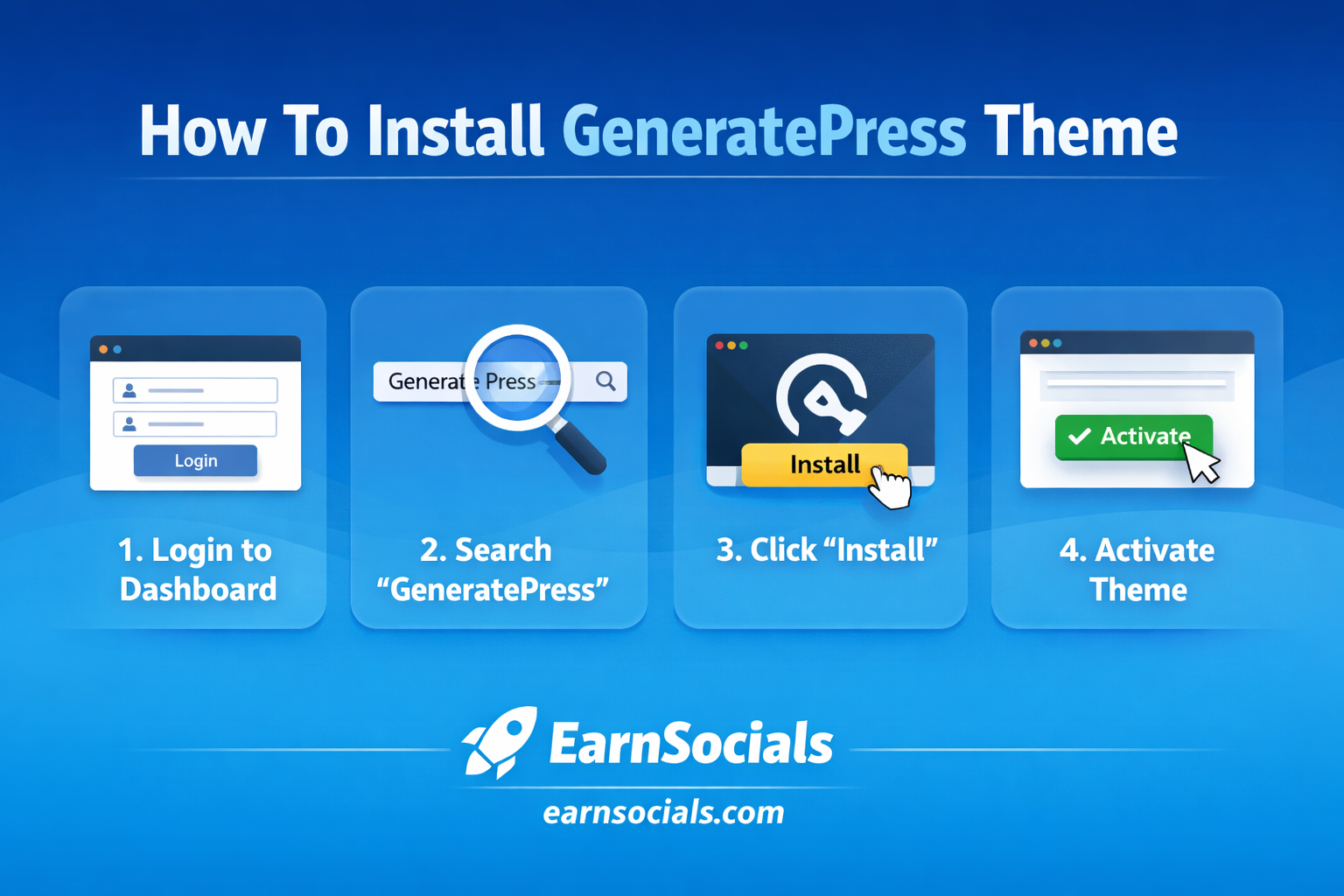
Step 1: Login to Your WordPress Dashboard
Go to:
👉 yourwebsite.com/wp-admin
Enter your:
- Username
- Password
Click Login

Step 2: Go to Themes Section
From the dashboard:
👉 Appearance → Themes
Then click:
👉 Add New Theme
Step 3: Search for GeneratePress
In the search bar, type:
👉 “GeneratePress”
You will see the theme appear.
Is GeneratePress Theme Free?
GeneratePress offers a free version that is available directly in the WordPress theme library. This version is lightweight, fast, and suitable for most beginner websites.
There is also a premium version, which includes advanced customization options and extra features. However, you do not need the premium version to get started.
👉 For beginners, the free version is more than enough.
Step 4: Install the Theme
Click:
👉 Install
Wait a few seconds for installation to complete.
Step 5: Activate GeneratePress
After installing, click:
👉 Activate
✅ Now your theme is live!
Step 6: Check Your Website
Visit your website homepage.
👉 You will see a clean, simple design.
Don’t worry — we will customize it later.

Basic Setup After Installation (Important)
Once installed, do these quick settings:
✔ Customize Layout
Go to:
👉 Appearance → Customize
From here you can change:
- Site title
- Logo
- Colors
- Layout
✔ Set Homepage
👉 Settings → Reading
Choose:
- Static homepage (optional)
✔ Install Essential Plugins
Recommended:
- LiteSpeed Cache (speed)
- Rank Math SEO (SEO)
- WPForms (contact form)
Real Example (From Experience)
When I first used GeneratePress on a blog:
- Page speed improved instantly
- Bounce rate reduced
- SEO performance improved
👉 This is why most professional bloggers use lightweight themes.
Common Mistakes to Avoid
❌ 1. Not Activating Theme
Some beginners install but forget to activate.
❌ 2. Using Too Many Plugins
Heavy plugins = slow website
❌ 3. Ignoring Mobile Design
Always check your site on mobile.
Pro Tips (Very Important)
✔ Keep It Simple
Don’t over-customize at the beginning.
✔ Focus on Speed
GeneratePress works best with:
- Fast hosting
- Cache plugin
✔ Plan Your Site Structure
Before design:
👉 Decide categories and content
What to Do Next?
Now that your theme is installed:
👉 Next step: Flow
- Customize your theme
- Create pages (About, Contact)
- Start publishing content
Conclusion
Installing GeneratePress is one of the smartest decisions you can make for your website.
It’s simple, fast, and beginner-friendly.
👉 If you follow this guide, your site is now ready for:
- SEO
- AdSense
- Content publishing
Start building your website today — don’t wait.
Now that your GeneratePress theme is installed, the next step is to customize it for better design and performance.
👉 Read next: How To Customize GeneratePress Theme
❓ FAQ (SEO Optimized)
1. Is GeneratePress theme free?
Yes, GeneratePress has a free version available in WordPress. It also offers a premium version with advanced features.
2. Is GeneratePress good for beginners?
Yes, GeneratePress is beginner-friendly and easy to install and customize.
3. Does GeneratePress help with SEO?
Yes, it is lightweight and optimized for speed, which improves SEO performance.
4. Can I use GeneratePress for an earning website?
Absolutely. It is one of the best themes for blogging, affiliate marketing, and online earning sites.
5. Do I need coding to use GeneratePress?
No, you can use it without coding. However, advanced customization can be done using CSS. More_Topiks


