How To Customize GeneratePress Theme


এই লেখায় যা আছে
- Introduction
- What You Will Learn
- Requirements
- Step-by-Step Guide to Customize GeneratePress
- Step 1: Open WordPress Customizer
- Step 2: Customize Site Identity
- Step 3: Change Colors
- Change Button Color Using CSS
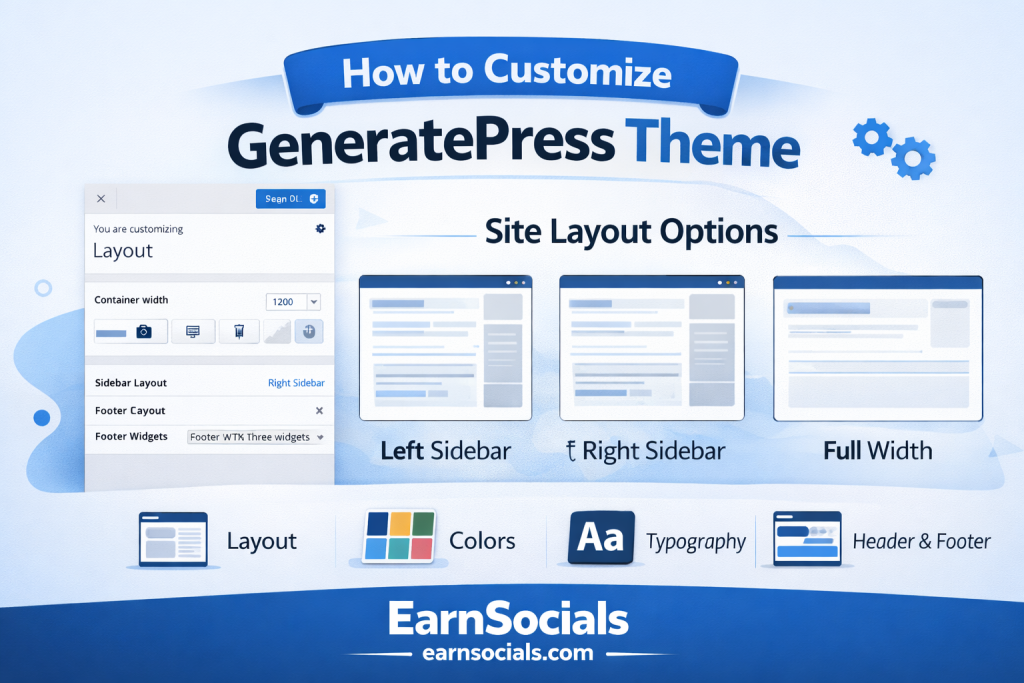
- Step 4: Customize Layout
- Step 5: Typography Settings
- Step 6: Customize Header
- Step 7: Customize Footer
- Step 8: Publish Changes
- Real Example (From Experience)
- Common Mistakes to Avoid
- Pro Tips for Better Design
- What to Do Next?
- Conclusion
- ❓ FAQ (SEO Optimized)
Introduction
When customizing your website, choosing the right theme is very important for both SEO and AdSense approval. A clean, fast, and well-structured design improves user experience and increases your chances of getting approved by Google AdSense.
For beginners, GeneratePress is a popular choice because it is lightweight, fast-loading, and easy to customize.
GeneratePress offers both a free version and a premium version. The free version is enough for most beginners to build a professional website. The premium version includes advanced customization features, but it is completely optional.
Learn Digital Skills
- Top Digital Skills To Learn In 2026
- Best Passive Income Ideas For Beginners In 2026
- How To Start Freelancing With No Skills
👉 If you are just starting, you can begin with the free version and upgrade later if needed.
After installing the GeneratePress theme, the next important step is customization.
Many beginners install a theme but leave it in default mode — which makes their website look plain and unprofessional.
From my experience, a properly customized theme can:
- Improve user experience
- Increase time on site
- Boost SEO performance
- Help with AdSense approval
In this tutorial, I’ll show you how to customize GeneratePress theme step by step (without coding).
What You Will Learn
In this guide, you’ll learn:
- How to access customization settings
- How to change layout, colors, and typography
- How to make your site look professional
- Beginner-friendly design tips
Requirements
Before starting, make sure:
- GeneratePress theme is installed and activated
- You have access to WordPress dashboard
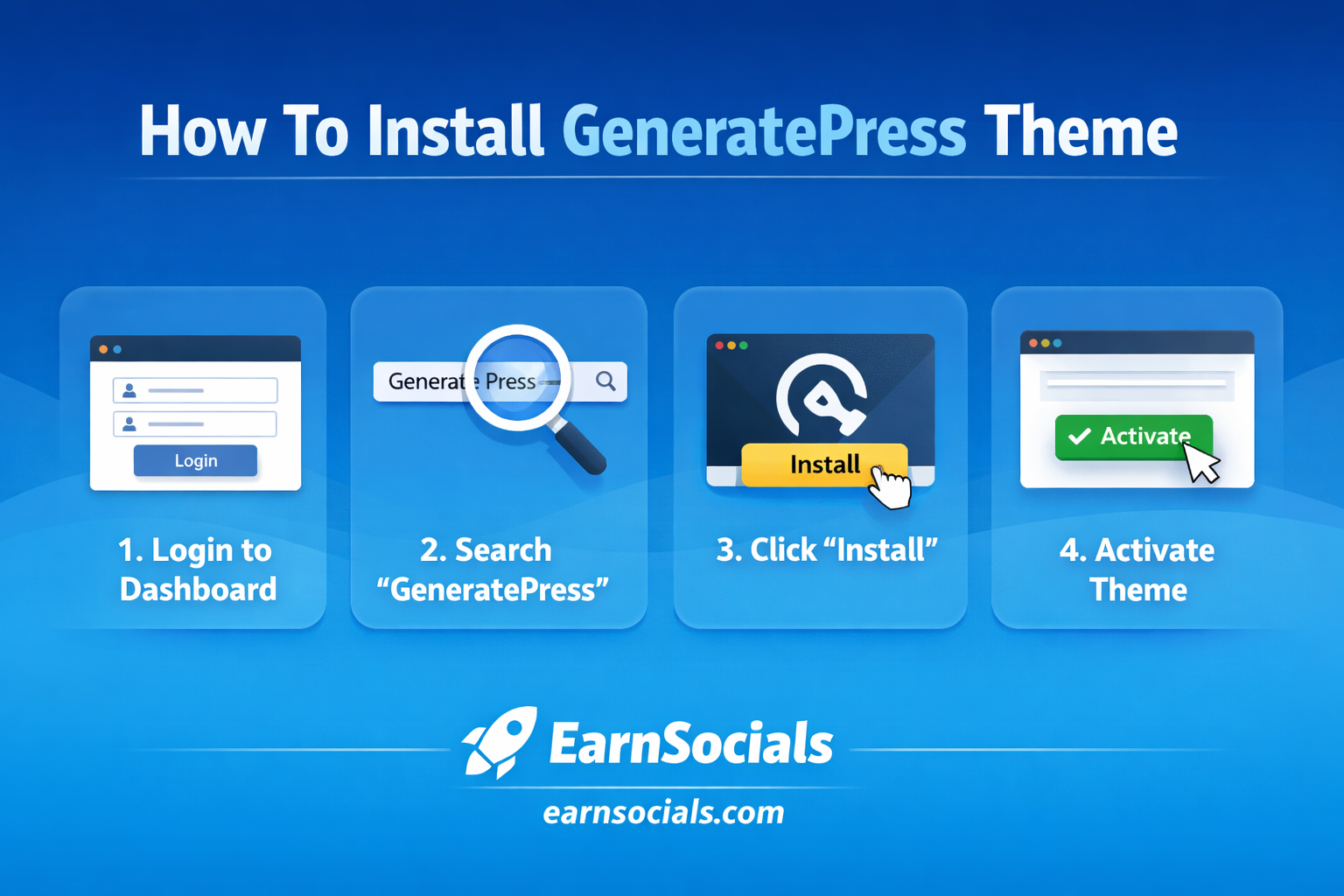
👉 If not, follow: How To Install GeneratePress Theme
Step-by-Step Guide to Customize GeneratePress
Step 1: Open WordPress Customizer
Go to:
👉 Appearance → Customize
This is where all customization happens.

Step 2: Customize Site Identity
Click:
👉 Site Identity
Here you can change:
- Site title
- Tagline
- Logo
Pro Tip:
👉 Use a clean logo and short title (better for branding)
Step 3: Change Colors
Click:
👉 Colors
You can customize:
- Background color
- Text color
- Link color
Best Practice:
- Use 2–3 main colors
- Keep it simple and clean
You like CSS Color – contact me – !!
Change Button Color Using CSS
If you want to customize your button color, you can use the following CSS code:
👉 This will change the button color to blue and make it rounded.
To apply this code:
button {
  background-color: #0073e6;
  color: #ffffff;
  border-radius: 5px;
}
👉 Go to Appearance → Customize → Additional CSS
👉 Paste the code
👉 Click Publish
More color css advance How To Customize GeneratePress Theme Using CSS
Step 4: Customize Layout
Click:
👉 Layout
Options include:
- Container width
- Sidebar position
- Header layout
Recommendation:
👉 Use:
- Right sidebar (for blogs)
- Clean full-width layout
Step 5: Typography Settings
Click:
👉 Typography
Change:
- Font style
- Font size
- Headings
Best Fonts:
- Roboto
- Open Sans
- Poppins
👉 Easy to read = better user experience
Step 6: Customize Header
Go to:
👉 Layout → Header
Adjust:
- Header width
- Alignment
- Spacing
Step 7: Customize Footer
Go to:
👉 Layout → Footer
You can:
- Add widgets
- Add copyright text
Example:
👉 “© 2026 EarnSocials – All Rights Reserved”
Step 8: Publish Changes
After making changes:
👉 Click Publish
Real Example (From Experience)
When I customized a GeneratePress blog:
- Clean layout increased readability
- Users stayed longer on site
- Pages looked more professional
👉 Small design changes = big impact
Common Mistakes to Avoid
❌ 1. Using Too Many Colors
👉 Makes site look messy
❌ 2. Large Font Sizes
👉 Hard to read
❌ 3. Ignoring Mobile View
👉 Always check mobile preview
Pro Tips for Better Design
✔ Keep Design Simple
Minimal design works best
✔ Focus on Speed
Avoid heavy elements
✔ Use Consistent Style
Same colors + fonts across site
What to Do Next?
Now that your theme is customized:
👉 Next step:
- Add plugins
- Create pages
- Start publishing content
👉 Advanced users can also use CSS for deeper customization.
Conclusion
Customizing GeneratePress is simple but very powerful.
You don’t need coding skills to make your site look professional.
👉 Follow these steps and your website will be:
- Clean
- Fast
- SEO-friendly
Start customizing your site today.
Affiliate Marketing Guides
- How To Promote Affiliate Products On Social Media
- Best Affiliate Programs For Beginners In 2026
- Amazon Affiliate Marketing Guide For Beginners
❓ FAQ (SEO Optimized)
1. Can I customize GeneratePress without coding?
Yes, GeneratePress allows full customization using the WordPress customizer without coding.
2. Is GeneratePress easy to customize?
Yes, it is beginner-friendly and provides simple options for layout, colors, and fonts.
3. What is the best layout for blogs?
A clean layout with a right sidebar is best for blogging websites.
4. Does customization affect SEO?
Yes, a clean design improves user experience and SEO performance.
5. Should I use premium version for customization?
The free version is enough for basic customization. Premium is optional for advanced features. More_Topics